Before you begin
Plans: Professional, Enterprise
Audience: Administrators
Using the Link custom field type, you can add a custom drop-down list to a work order, project, or asset. The drop-down list can reference any table in the data dictionary.
You can also use this feature in combination with your own custom table in the data dictionary.
To add a custom drop-down list to a record:
- Do one of the following:
- Navigate to Maintenance > Work Orders if you want to add the list to a work order.
- Navigate to Maintenance > Projects if you want to add the list to a project.
- Navigate to Assets if you want to add the list to an asset.
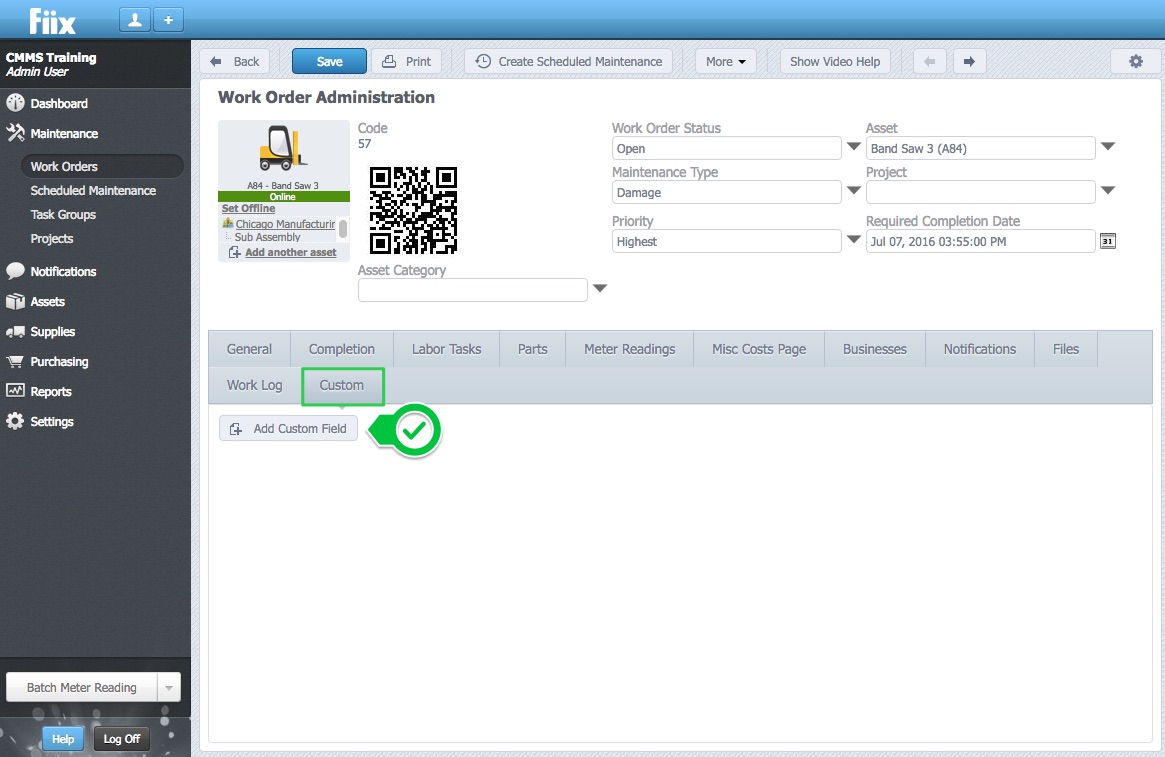
- In the Custom tab, click the Add Custom Field button:
- Enter a Name and Label for the field.
The name is how the system refers to that field in the database, and it must start with a letter and not contain spaces. The label is how you'll see the field in the CMMS. - In the Type drop-down, select Link:
- 4. Select the data table to link to:
- (Asset-only) In the Applies to this asset category drop-down list, select which category of assets this field applies to.
For example, to add the custom field to all assets in the Fork Lift category, select Fork Lift. - (Asset-only) To apply the field to sub-categories of the category you selected above, select the Also apply this field to all child categories checkbox.
- Click OK to create the custom drop-down list.