Before you begin
Permissions: All
Plans: All
Version: v5 (what does this mean?)
Businesses are the vendors, suppliers, and manufacturers that make and maintain your assets and supplies. Add businesses to Fiix to track your primary contacts, historical purchase information, get quotes, and maintain your business relationships over time.
Businesses need to be associated with assets to automatically send requests for quotes (RFQs), compare supplier prices, and make purchases in the purchasing module.
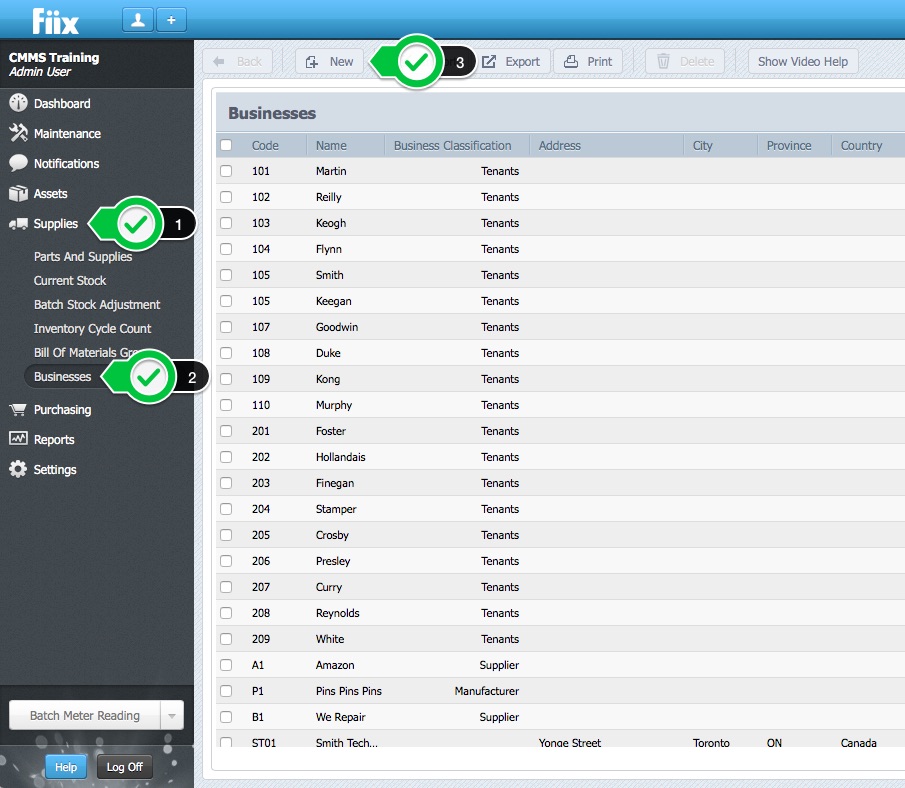
1. To add a business select Supplies, Businesses, and click New:
General
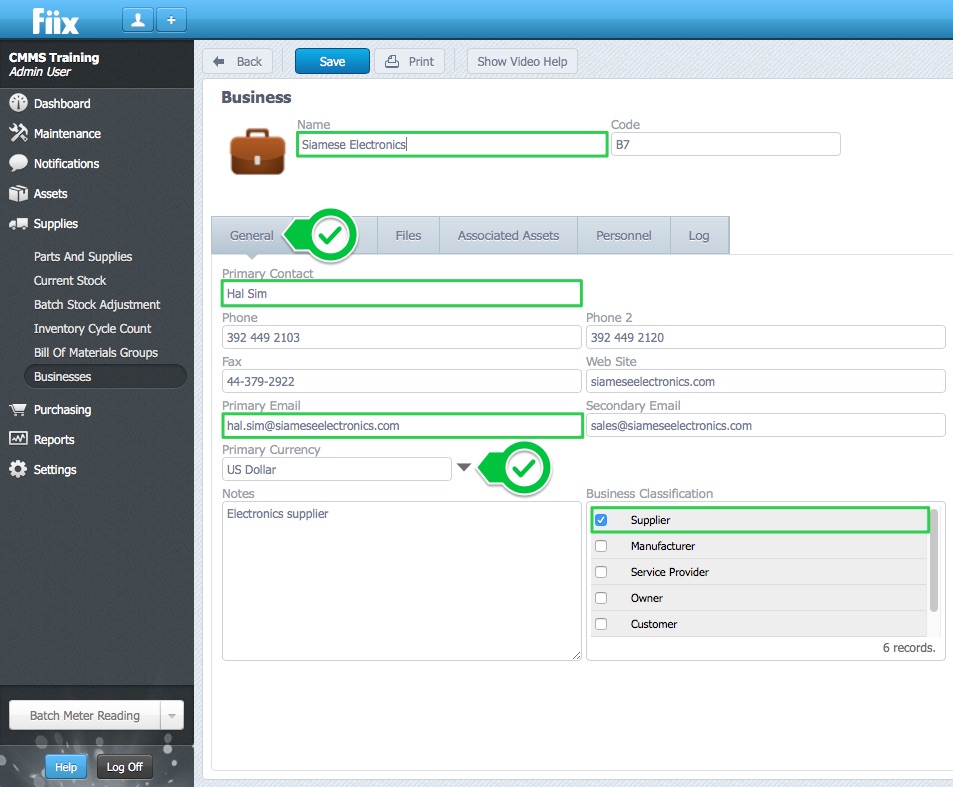
2. Add information about the business to the empty fields in the General tab. It is important to define the Name, Primary Email, and Primary Currency. The Name is used to identify the business, the Primary Email is used to contact the business by email, and the Primary Currency determines the business currency used for purchases in the Purchasing module. Select the Business Classification type to define the business type.
Location
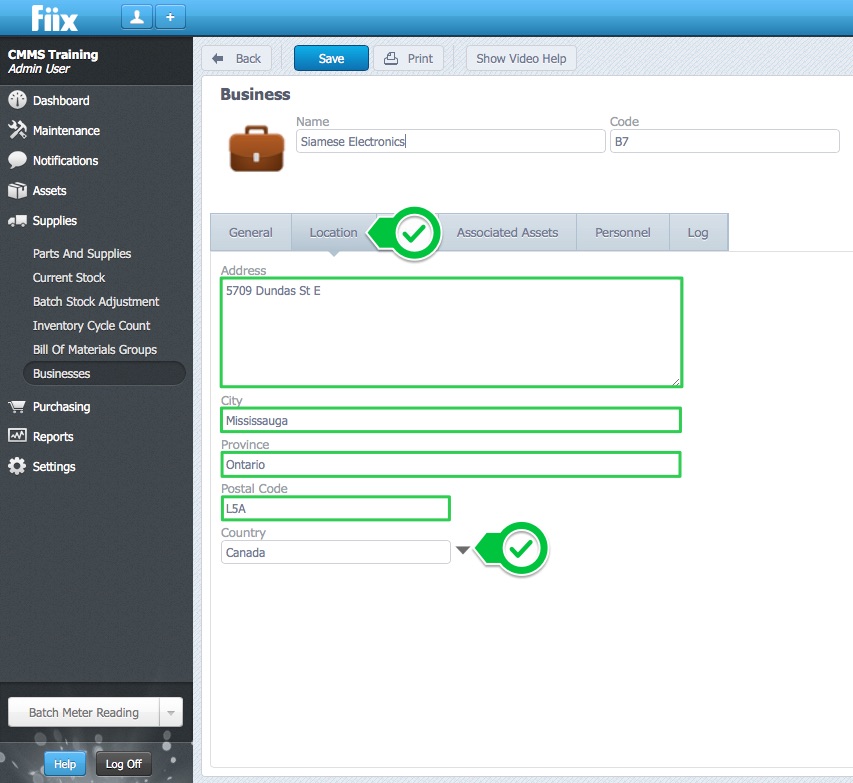
3. Select the Location tab, and add the business location information to the empty fields.
Files
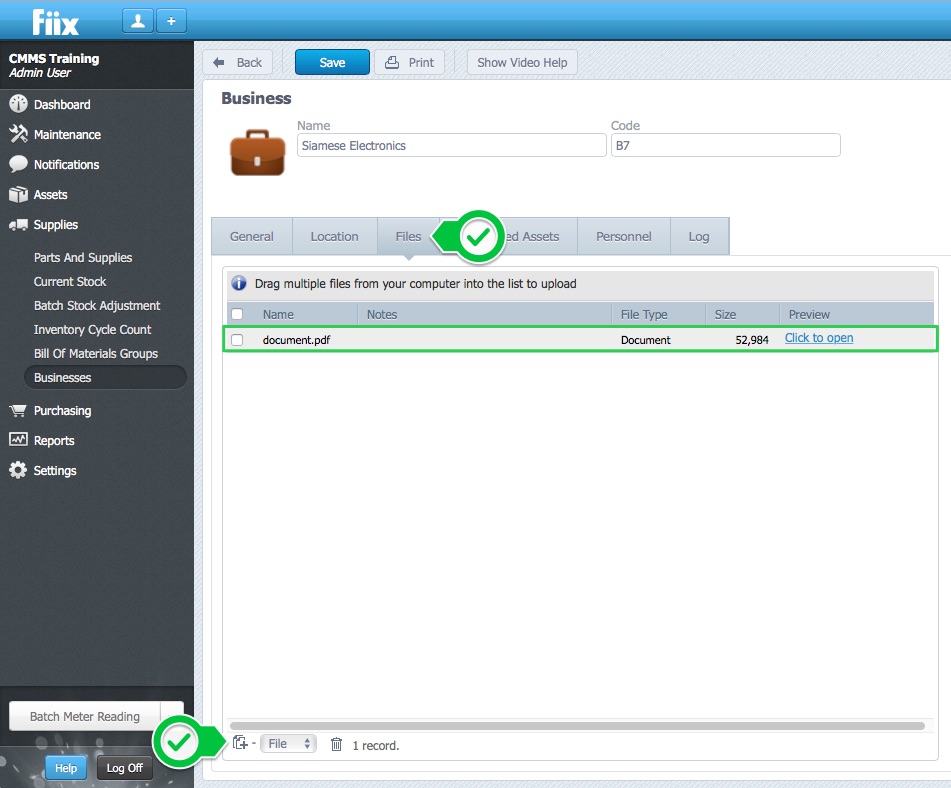
4. To add files select Files, the file type, the New button and the file. Alternatively, files can be added by dragging and dropping the files into the files window.
Associated Assets
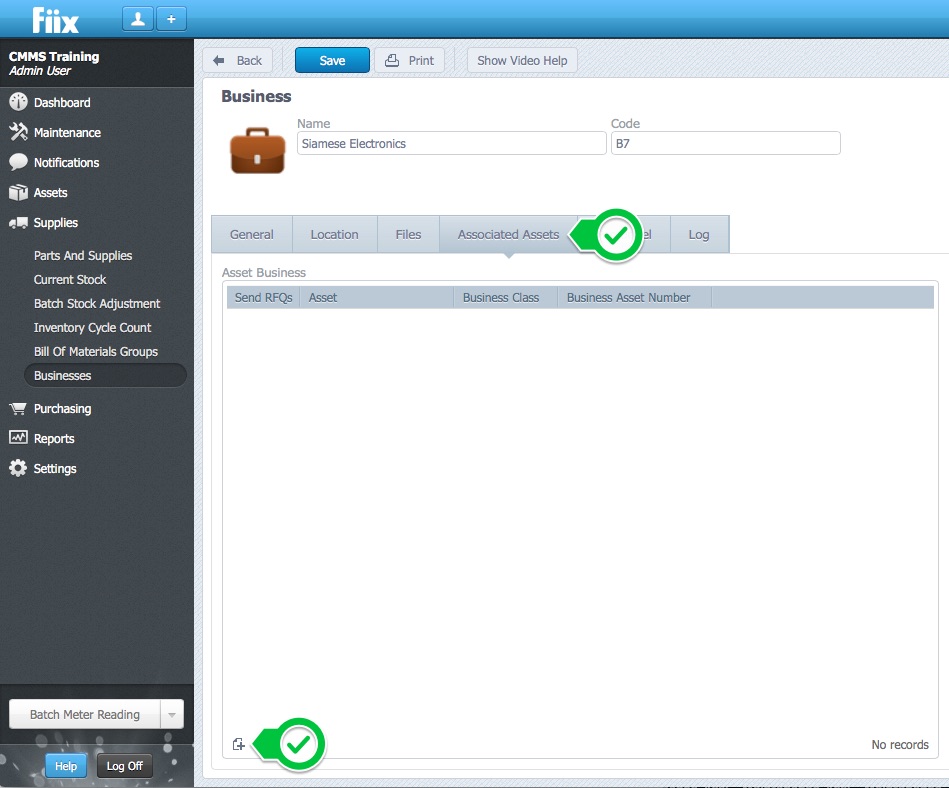
5. To associate a business with an asset select Associated Assets, and click the New button
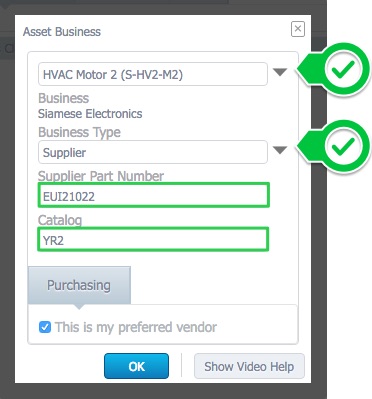
6. Select the asset and Business Type from the dropdown menus. Add a Supplier Part Number and Catalog. Select This is my preferred vendor to preferentially select this business over other businesses associated with this asset in the Purchasing Planning Board. For example, if three businesses are associated with an asset, the Asset Business with "This is my preferred vendor" selected, will be the supplier associated with the asset in the Purchasing Planning Board. Click OK to complete.
Personnel
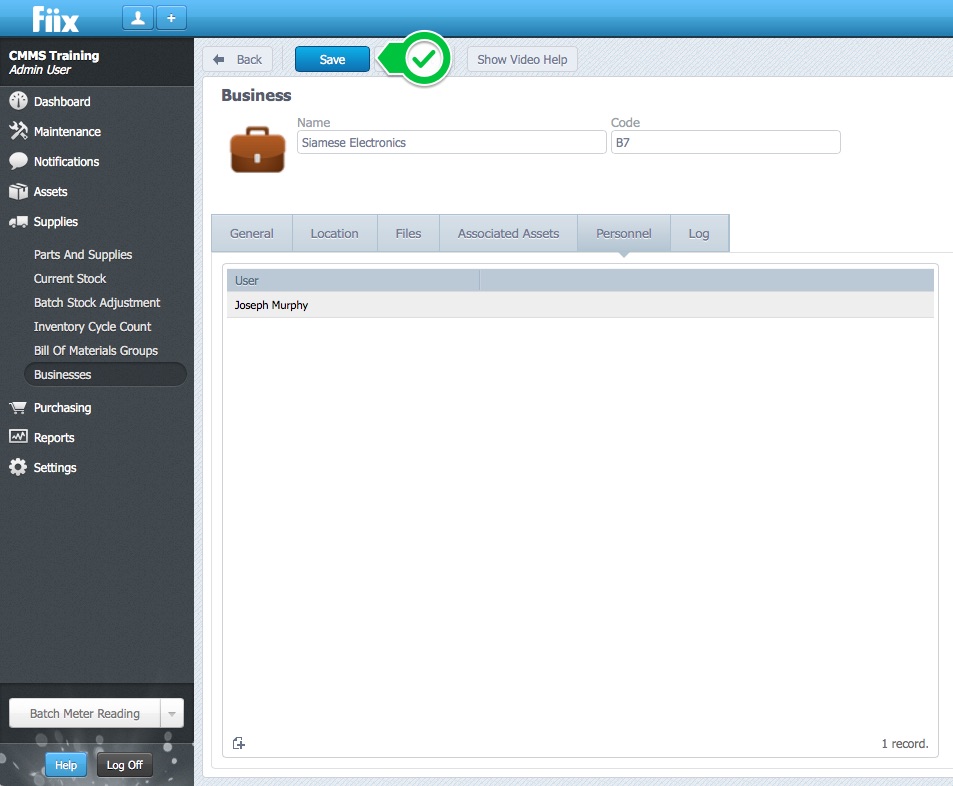
7. To assign personnel as a Business Contact, select Personnel and click the New button.
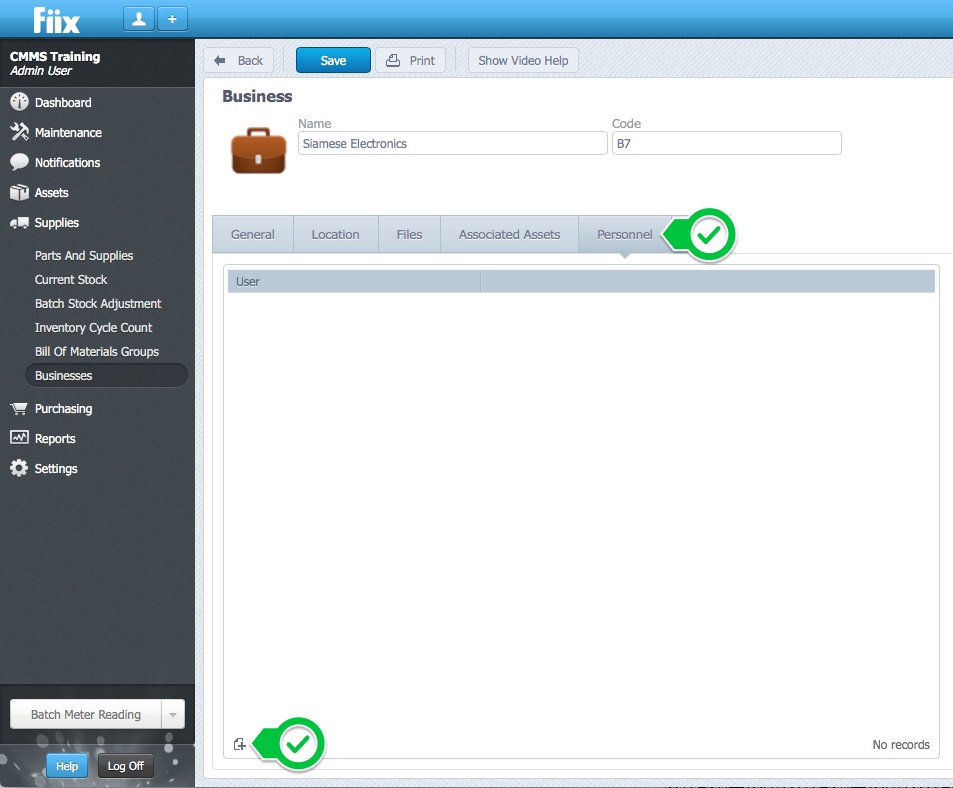
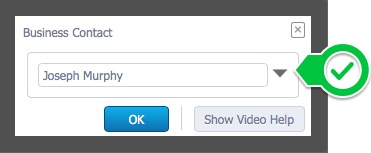
8. Select a user from the dropdown menu and click OK.
9. When the business information is complete, click Save
Log
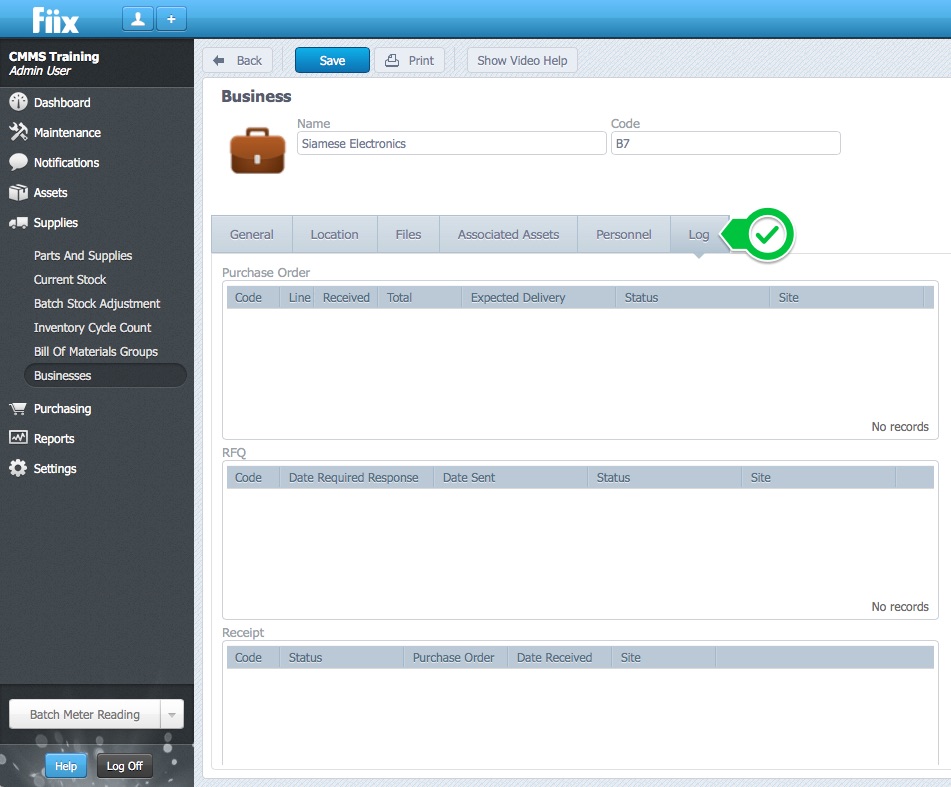
10. Select the Log tab to view Purchase Orders, RFQs and receipts associated with the business.